



When a computer, server, router, or other networked device cannot communicate properly, the IP configuration is one of the first places to investigate.
An incorrect IP address, duplicate address, invalid subnet configuration, missing default gateway, DHCP failure, or DNS problem can make a device appear connected while applications and websites remain unreachable.
Understanding IP addressing and network troubleshooting gives you a structured way to identify where communication is failing instead of changing network settings randomly.
This guide explains how IP addresses work, the difference between IPv4 and IPv6, public and private addressing, DHCP, DNS, subnet masks, default gateways, and practical diagnostic commands. It also provides step-by-step approaches for common problems such as IP conflicts and invalid IP configurations.


What Is an IP Address?
An IP address is a logical address used to identify a network interface within an IP network.
The Internet Protocol is responsible for moving datagrams between source and destination hosts across interconnected networks. IPv4 uses 32-bit addresses, while IPv6 uses 128-bit addresses.
A familiar IPv4 address looks like:
192.168.1.25
It contains four decimal octets separated by periods.
An IPv6 address looks different:
2001:db8:1234::25
IPv6 uses hexadecimal notation and provides a much larger address space.
IETF IPv4 specification (RFC 791)
If you want to examine a specific address in more detail, our 111.90.150.2044 IP address explained guide provides a practical example.
An important distinction is that an IP address is not the same thing as a device name. DNS can map names to addresses, while routing determines how packets reach their destinations. The original IP specification describes the distinction between names, addresses, and routes.
How IP Addressing Works
Consider a simple home network:
| Device | Example IP |
|---|---|
| Router | 192.168.1.1 |
| Laptop | 192.168.1.20 |
| Phone | 192.168.1.21 |
| Printer | 192.168.1.30 |
The router normally acts as the gateway between the local network and external networks.
The laptop can communicate directly with another device on the same local subnet. If it needs to reach an Internet destination, the packet is normally sent toward the default gateway.
This means several pieces of configuration work together:
- IP address identifies the local interface.
- Subnet mask or prefix determines the local network boundary.
- Default gateway provides a route toward networks outside the local subnet.
- DNS server resolves domain names into IP addresses.
- DHCP can automatically provide these configuration parameters.
A failure in any one of these components can produce a different symptom.
IPv4 vs. IPv6

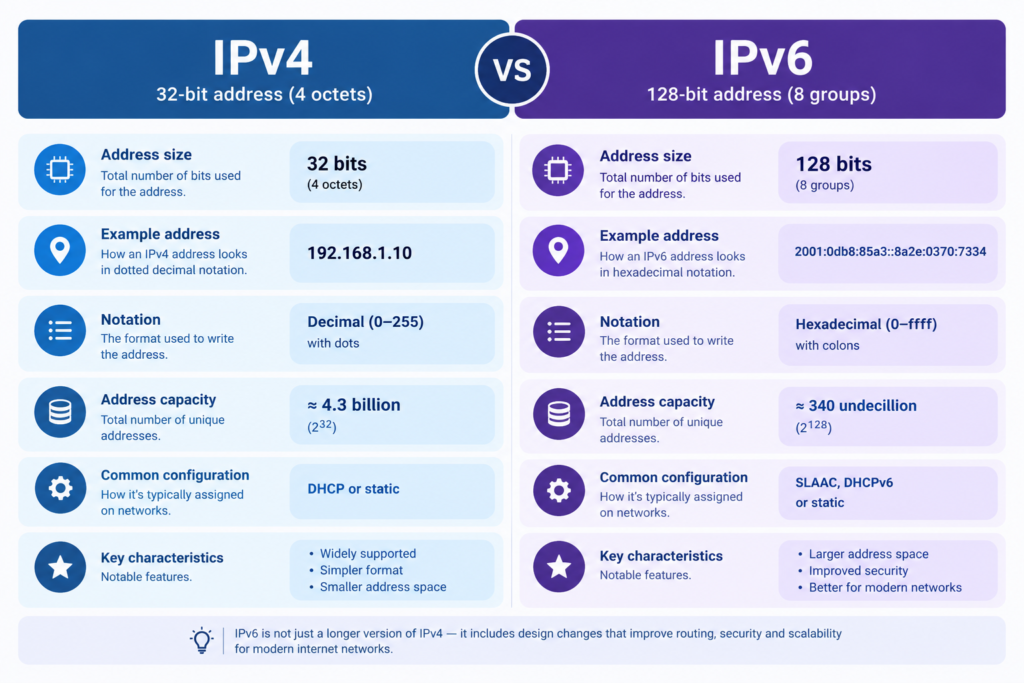
IPv4 and IPv6 are different versions of the Internet Protocol.
IPv4 uses 32-bit addresses. IPv6 expands the address size to 128 bits and introduces additional addressing capabilities and a simplified base header structure. RFC 8200 is the current Internet Standard specification for IPv6 and obsoletes RFC 2460.
| Feature | IPv4 | IPv6 |
|---|---|---|
| Address size | 32 bits | 128 bits |
| Example | 192.168.1.10 | 2001:db8::10 |
| Notation | Decimal octets | Hexadecimal groups |
| Address capacity | Smaller | Vastly larger |
| Common configuration | DHCP or static | Multiple configuration mechanisms |
| Diagnostic tools | ping, traceroute |
ping, traceroute/platform equivalents |
IPv6 is not simply IPv4 with longer addresses. Its protocol design also changes several aspects of packet processing and addressing.
IETF IPv6 specification (RFC 8200)
Which version should you troubleshoot?
Do not assume that an IPv4 problem automatically means IPv6 is also broken.
A device may have both IPv4 and IPv6 connectivity. Testing only one protocol can therefore give an incomplete picture.
For example, if a website works over IPv6 but not IPv4, investigating only the IPv4 route may reveal the actual problem.
Public vs. Private IP Addresses

One of the most important distinctions in an IP address guide is the difference between public and private addressing.
Private IPv4 addresses are intended for private networks and are not globally routable on the public Internet.
The three traditional RFC 1918 private ranges are:
| Range | CIDR |
|---|---|
| 10.0.0.0–10.255.255.255 | 10.0.0.0/8 |
| 172.16.0.0–172.31.255.255 | 172.16.0.0/12 |
| 192.168.0.0–192.168.255.255 | 192.168.0.0/16 |
IANA also identifies these ranges as Private-Use address space.
For example:
192.168.1.25
is normally a private address used inside a local network.
IETF RFC 1918 private address space
A public IP address is globally relevant to Internet routing and may be assigned to a network or interface for external connectivity.
Why this distinction matters
Suppose your computer reports:
192.168.1.25
while an online IP-checking service reports:
203.0.113.x
The two values do not necessarily contradict each other.
Your computer can use a private address internally while the router or another network device provides the public-facing address used for external communication.
Network Address Translation (NAT) is commonly used in networks where internal private addresses communicate with external networks.
Special-Purpose Addresses You Should Recognize
Not every IP address represents an ordinary host on the public Internet.
IANA maintains a registry of IPv4 special-purpose address blocks. Examples include:
127.0.0.0/8— loopback169.254.0.0/16— link-local192.168.0.0/16— private use10.0.0.0/8— private use172.16.0.0/12— private use192.0.2.0/24— documentation198.51.100.0/24— documentation203.0.113.0/24— documentation
IANA’s current registry identifies the purpose and routing characteristics of these blocks.
The 127.0.0.0/8 range is especially important during troubleshooting because it is used for loopback communication.
Subnet Masks and Default Gateways
Knowing an IP address alone is not enough to determine whether a network configuration is correct.
A device also needs to understand which addresses are local and where traffic for other networks should go.
For example:
IP address:     192.168.1.25
Subnet mask:    255.255.255.0
Default gateway:192.168.1.1
The subnet mask corresponds to a /24 prefix.
In this simplified example, addresses in the same local subnet can communicate directly according to the network’s routing and link-layer configuration.
Traffic intended for another network is generally sent toward the default gateway.
A common configuration mistake
Suppose a computer has:
IP:       192.168.1.25
Mask:     255.255.255.0
Gateway:  192.168.10.1
The gateway is in a different subnet from the computer’s local /24 network.
That can indicate a configuration problem, depending on the actual network design.
Do not change the gateway simply because it looks unusual, however. Enterprise networks can use more complex subnetting and routing arrangements.
DHCP and Automatic IP Configuration
Most home and many business networks use DHCP to automate IP configuration.
The DHCP specification describes a client-server model in which a DHCP server can allocate network addresses and deliver configuration parameters to hosts.
DHCP may provide information such as:
- IP address
- Subnet mask
- Default gateway
- DNS server information
- Lease information
- Other network configuration parameters
If DHCP fails, a device may not receive the expected configuration.
Signs of a DHCP problem
Possible symptoms include:
- No usable IPv4 address
- Missing default gateway
- Incorrect DNS configuration
- An address from an unexpected network
- Connectivity that disappears after reconnecting
- A device receiving a link-local address
If several devices simultaneously experience similar problems, investigate the DHCP server, router, VLAN, switch, or network path rather than changing each client manually.
DNS and IP Address Resolution
DNS is responsible for translating domain names into resource information, including host addresses.
The DNS architecture is distributed and uses resolvers and name servers rather than relying on a single central database.
For example:
www.example.com
       ↓
     DNS
       ↓
IP address
       ↓
Network connection
This distinction is essential when troubleshooting.
If you can successfully ping an IP address but cannot reach a hostname, the underlying IP connection may be working while DNS resolution is failing.
Test DNS separately
Useful commands include:
nslookup example.comor:
dig example.comA DNS failure does not automatically mean the Internet connection itself is down.
Common IP Address Problems
1. IP Address Conflict
An IP address conflict occurs when two interfaces attempt to use the same address within a network where the address is expected to be unique.
Symptoms can include:
- Intermittent connectivity
- Duplicate-address warnings
- One device suddenly becoming unreachable
- Connections that work and then fail
- ARP-related inconsistencies
To fix an IP address conflict:
- Identify the affected address.
- Determine which devices are using it.
- Check DHCP reservations.
- Look for manually configured static addresses.
- Remove overlapping configurations.
- Renew DHCP leases where appropriate.
- Confirm that the address is now unique.
Avoid randomly assigning another address without understanding how the network allocates addresses. For a practical example of examining a specific address, see our 212.32.226.324 IP security check.
2. Invalid IP Address
An “invalid IP address” can mean different things depending on the context.
It might refer to:
- Incorrect syntax
- An address outside the expected subnet
- An address that conflicts with another host
- A missing DHCP assignment
- A special-purpose address being used incorrectly
- A manually configured address that does not match the network design
For example, an address such as:
192.168.1.25
is syntactically valid IPv4 notation.
But that does not prove that it is valid for your particular network.
Network validity is contextual.
3. 169.254.x.x Address
A 169.254.x.x address should immediately attract attention during IPv4 troubleshooting.
IANA identifies 169.254.0.0/16 as IPv4 Link Local address space.
If a client unexpectedly receives a link-local address instead of the address normally supplied by DHCP, investigate the DHCP path and local network connectivity.
Possible causes include:
- DHCP server unavailable
- Router problem
- VLAN configuration issue
- Wireless isolation or authentication problem
- Switch connectivity issue
- Incorrect client configuration
The exact diagnosis depends on the network environment.
How to Troubleshoot Network IP Problems
The most effective approach is to test the network in layers rather than changing several settings simultaneously.
Step 1: Check the Local IP Configuration
On Windows:
ipconfig /allOn Linux:
ip addr
ip route
On macOS:
ifconfig
route -n get default
Look for:
- Assigned IP address
- Subnet mask or prefix
- Default gateway
- DNS servers
- Interface state
First determine whether the configuration is actually what you expect.
Step 2: Test the Local Stack
The loopback address can help establish whether the local IP stack is functioning.
For IPv4:
ping 127.0.0.1The 127.0.0.0/8 range is reserved for loopback traffic.
If local loopback testing fails, investigate the host itself before troubleshooting the router or ISP.
Step 3: Test the Local Gateway
Next, test the configured gateway:
ping 192.168.1.1Replace the example address with the actual gateway shown by the system.
If the gateway cannot be reached, investigate the local connection first.
Possible causes include:
- Wi-Fi problems
- Ethernet cable problems
- Incorrect VLAN
- Incorrect subnet configuration
- Router interface failure
- Firewall behavior
- Network segmentation
Step 4: Test an External IP Address
If the gateway works, test an external destination by IP.
For example:
ping 1.1.1.1This is not a universal Internet-health test because remote systems or intermediate networks can filter ICMP.
ICMP Echo and Echo Reply are defined in the ICMP specification, but a failed ping does not necessarily prove that every other type of network traffic is failing.
The purpose of the test is to compare different layers of connectivity.
Step 5: Test DNS
Now test name resolution:
nslookup example.comor:
dig example.comIf IP connectivity works but DNS resolution fails, focus on:
- DNS server configuration
- Local DNS cache
- DNS resolver availability
- Firewall policies
- DNS filtering
- Network-level DNS interception
Step 6: Trace the Route
Use a route-tracing utility when you need to determine where packets stop progressing.
Windows:
tracert example.comLinux:
traceroute example.comDepending on the operating system and network, different probes may be used.
A missing response from one hop does not automatically mean that hop is broken. Some routers intentionally do not respond to diagnostic probes while continuing to forward normal traffic.
Network Diagnostic Commands
| Command | Main purpose |
|---|---|
ipconfig /all |
View Windows IP configuration |
ip addr |
View Linux interface addresses |
ip route |
Inspect Linux routing information |
ping |
Test IP reachability |
tracert |
Trace a route on Windows |
traceroute |
Trace a route on Unix-like systems |
nslookup |
Query DNS |
dig |
Detailed DNS queries |
arp / ip neigh |
Inspect local neighbor information |
Do not interpret a command in isolation.
For example, a failed ping could result from filtering rather than an unavailable host. A successful DNS lookup does not prove that an application can connect to the destination service.
The goal is to combine multiple observations. When reviewing local devices, a MAC address vendor can help identify the registered manufacturer associated with a hardware address.
How to Fix an IP Address Conflict
If you suspect an IP conflict, start by determining whether the address is static or dynamically assigned.
For DHCP-managed clients
Check:
- DHCP lease information
- DHCP reservations
- Duplicate reservations
- Devices using manually configured addresses
- Network logs, if available
Renewing a DHCP lease can help after the underlying conflict has been resolved.
For static addressing
Review the network’s address plan.
For example, if DHCP distributes:
192.168.1.100–192.168.1.200do not manually assign a device 192.168.1.150 unless the network design specifically reserves that address for it.
The important principle is not the specific range but avoiding overlapping address-management policies.
When the Problem Is DNS, the Router, or the ISP
A useful troubleshooting question is:
At what point does connectivity fail?
Consider this simplified sequence:
Device
  ↓
Local interface
  ↓
Default gateway
  ↓
ISP/network upstream
  ↓
Destination IP
  ↓
DNS/application service
If the device cannot communicate with its own gateway, investigate the local network.
If the gateway works but external IP connectivity fails, investigate routing, WAN connectivity, firewall policy, or the ISP.
If external IP connectivity works but domain names fail, investigate DNS.
If DNS works and the route works but an application still fails, investigate the application, destination service, ports, TLS, firewall rules, or higher-layer protocols.
This layered approach prevents you from blaming DNS for a broken Ethernet connection or replacing a router when the actual problem is a DHCP configuration.
IP Address Lookup, WHOIS, and RDAP
IP lookup tools can provide useful information about Internet address space, but their results must be interpreted carefully. For a real-world example, see our 111.09.150.182 IP lookup guide.
IANA maintains Internet number registries for IPv4, IPv6, and Autonomous System Numbers. It also provides information about special-purpose address space and RDAP bootstrap resources.
For registration data, the modern approach is increasingly based on RDAP.
ICANN describes RDAP as a protocol developed through the IETF that provides standardized access to registration data and was created as the replacement for WHOIS.
A lookup may help you investigate:
- Network registration
- IP allocation
- Autonomous System information
- Registration organizations
- Domain registration information
- Network ownership context
However, an IP address lookup does not automatically identify the individual person using an address.
An address may belong to an ISP, hosting provider, cloud provider, enterprise, VPN provider, or other network operator.
ICANN’s registration-data documentation also distinguishes Internet number databases from domain-name registration databases.
You can also review our 81.63.253.200 IP lookup example to see how a specific public IP address can be investigated.
A Practical IP Troubleshooting Workflow


When troubleshooting an unfamiliar problem, use this sequence:
1. Identify the symptom
Ask:
- Is the device offline?
- Can it reach the gateway?
- Can it reach an external IP?
- Can it resolve DNS?
- Can it reach the application?
2. Inspect configuration
Check:
IP address
Subnet/prefix
Default gateway
DNS servers
Interface status
3. Test the local stack
ping 127.0.0.14. Test the gateway
ping <gateway>5. Test external connectivity
ping <external-IP>6. Test DNS
nslookup <domain>7. Trace the path
traceroute <destination>or:
tracert <destination>8. Check the wider environment
If multiple devices have the same problem, investigate shared infrastructure:
- Router
- DHCP server
- DNS resolver
- Switch
- VLAN
- Firewall
- ISP connection
9. Change one thing at a time
Record the original configuration before modifying it.
This is particularly important on production networks.
Common IP Troubleshooting Mistakes
Changing several settings simultaneously
If you change the IP address, DNS server, gateway, router settings, and firewall at the same time, you may fix the problem without knowing why.
Make controlled changes whenever possible.
Assuming Wi-Fi means Internet connectivity
A device can have a working wireless link while having no usable IP configuration or no route to the Internet.
Assuming ping failure means the server is offline
ICMP can be filtered.
Use multiple tests.
Confusing public and private addresses
A private address such as 192.168.1.20 can be completely normal for a local computer.
Treating DNS and IP connectivity as the same problem
A domain-resolution failure and a routing failure can produce similar user-visible symptoms but require different fixes.
Ignoring IPv6
A network can have functioning IPv4 and broken IPv6, or the reverse.
When investigating modern dual-stack environments, test both protocols where appropriate.
Best Practices for IP Address Management
Good IP addressing reduces troubleshooting time.
Maintain an address plan
Document:
- Subnets
- VLANs
- Gateways
- DHCP scopes
- Static addresses
- Reservations
- DNS records
Avoid uncontrolled static addressing
Manual addresses should be coordinated with the network’s address-management strategy.
Document infrastructure
Keep accurate records of:
- Router interfaces
- Switch networks
- DNS servers
- DHCP servers
- Firewall interfaces
- Important server addresses
Monitor unusual changes
Unexpected address changes can indicate configuration errors, DHCP problems, or other network events.
Use authoritative sources
When researching Internet number resources, use IANA and relevant registry/RIR information rather than relying exclusively on third-party IP databases. IANA maintains the core IPv4, IPv6, and ASN registries.
Frequently Asked Questions
What is an IP address?
An IP address is a logical network address used to identify a network interface for IP communication. IPv4 uses 32-bit addresses, while IPv6 uses 128-bit addresses.
What is the difference between a public and private IP address?
A private IP address is intended for use inside private networks and is not globally routable. Traditional IPv4 private ranges include 10.0.0.0/8, 172.16.0.0/12, and 192.168.0.0/16.
How do I troubleshoot an IP address problem?
Start by checking the device’s IP address, subnet, gateway, and DNS settings. Then test the local stack, gateway, external connectivity, DNS resolution, and route to the destination.
What does a 169.254.x.x address mean?
The 169.254.0.0/16 range is IPv4 Link Local address space. An unexpected address in this range can indicate that a device did not receive its expected network configuration, often making DHCP and local network connectivity worth investigating.
How can I fix an IP address conflict?
Identify the duplicate address, determine which devices are using it, review DHCP reservations and static configurations, and make sure the address-management scheme does not assign the same address to multiple devices.
What is DHCP?
DHCP is a client-server protocol that can allocate network addresses and provide configuration parameters to hosts.
What is DNS?
DNS is a distributed naming system used to associate domain names with resource information, including host addresses. Resolvers query DNS name servers to obtain the required information.
What is the difference between IPv4 and IPv6?
IPv4 uses 32-bit addresses. IPv6 uses 128-bit addresses and provides a substantially larger addressing space along with changes to the IP protocol design.
Is WHOIS still used for IP and domain lookups?
WHOIS remains relevant in some contexts, but RDAP is the standardized successor for registration-data access. ICANN describes RDAP as the replacement for WHOIS and provides RDAP-based lookup services.
Does a failed ping prove that a server is offline?
No. ICMP traffic can be filtered or deprioritized. A failed ping should be considered one diagnostic observation rather than definitive proof that the destination is unavailable.
About the Author
Ruth Blair is a cybersecurity researcher and technical writer specializing in network diagnostics, WHOIS intelligence, and threat telemetry. With a background in systems analysis, Ruth translates complex IP routing data, server logs, and security infrastructure into actionable insights for webmasters and network administrators. When not analyzing network traffic, she focuses on making web security accessible to everyday internet users.